Whatever You Already Own
- Old laptop or desktop - Sitting in a drawer somewhere, probably
- Cost: $0-50
- Run: Docker, Pi-hole, Home Assistant, Plex
People sleep on this option. That ThinkPad from 2015 with a cracked screen? It runs Docker just fine. Plug in ethernet, close the lid, and forget about it — a ten-year-old laptop handles dozens of containers without breaking a sweat.
The Single-Board Route
- Pi 4 (4GB or 8GB) - Cheap, tiny, quiet
- Cost: $50-100 with accessories
- Run: Pi-hole, VPN server, lightweight services
Draws about as much power as a phone charger. You can leave it running 24/7 and your electricity bill won't even notice (seriously, we're talking pennies per month). The tradeoff is limited RAM and ARM architecture, which means some Docker images won't work without fiddling.
Refurbished Enterprise Gear
- Dell PowerEdge, HP ProLiant, Lenovo ThinkServer - eBay is your friend
- Cost: $150-400
- Run: Proxmox, full virtualization, serious workloads
These machines originally cost thousands. Now they're practically free. The catch? Noise. And power draw that shows up on your bill every single month (I learned this the hard way with a Dell R620 that sounded like a jet engine — $25/month in extra electricity for something a mini PC could have handled). If you have a basement or garage, though, they're unbeatable for raw capability per dollar.
Mini PCs
- Intel NUC, Minisforum, Beelink - Modern, power-efficient
- Cost: $200-600
- Run: Everything, quietly
This is where most people should land. Small enough to Velcro behind a monitor. Quiet enough for a bedroom. A used Dell OptiPlex or Lenovo ThinkCentre micro gives you the best value in homelabbing right now — and the power consumption stays under 30W at idle.
What to Actually Run
Instead of thinking about this as a progression — "first install X, then graduate to Y" — it makes more sense to ask what you're trying to do. Nobody installs software in a prescribed order. You install what solves a problem you're having right now.
Media and Entertainment
- Jellyfin or Plex - Stream your own movie and music library to any device in the house
- PhotoPrism - A Google Photos replacement that keeps your pictures on your own hardware
- Audiobookshelf - Audiobooks and podcasts, self-hosted
This is the gateway drug for a lot of people. You rip your DVD collection, point Jellyfin at the folder, and suddenly you have your own Netflix. It's satisfying in a way that's hard to explain until you do it.
Network Hygiene and Security
- Pi-hole or AdGuard Home - Blocks ads and trackers for every device on your network, no browser extension needed
- pfSense/OPNsense - Replace your ISP's terrible router with a real firewall
- Nginx Proxy Manager - Gives each of your services a clean URL with SSL (you'll need this once you're running more than three things)
Productivity and Getting Off the Cloud
- Nextcloud - Your own Dropbox/Google Drive (the electricity cost of running this 24/7 is something to factor in — budget an extra $10-30/month depending on your hardware)
- Vaultwarden - Self-hosted Bitwarden password manager
- Paperless-ngx - Scan documents, OCR them, never lose a receipt again
DevOps Playground
- Proxmox - Spin up and destroy VMs on a whim, which is genuinely useful for testing things
- Portainer - A web UI for managing Docker containers (makes deploying new services almost trivially easy)
- Kubernetes (k3s) - Container orchestration, but honestly? Docker Compose handles 95% of what most homelabs need
- Ansible/Terraform - Infrastructure as code, for when you want to rebuild everything from scratch without remembering fifty steps
Storage and Keeping an Eye on Things
- TrueNAS or ZFS pool - Redundant network storage (buy a UPS before you set this up — I lost a whole Nextcloud database to a power blip once, and that's a mistake you only make one time)
- Monitoring stack - Grafana, Prometheus, Loki for logs
Network Architecture
You can overthink networking or you can just plug things in and deal with it later. Both approaches work — up to a point.
Flat Network (Just Starting Out)
Internet → ISP Router → Homelab Server
 ↳ All other devices
Everything lives on one subnet. No segmentation. This is fine when you're running two or three services and nothing faces the internet. Most people stay here longer than they think they will.
Segmented with VLANs
Internet → Router/Firewall → LAN (your devices)
 ↳ Server VLAN (homelab)
 ↳ IoT VLAN (smart devices)
 ↳ Guest VLAN (visitors)
Each category of device gets its own network. Your IoT stuff — smart plugs, cameras, whatever — can't talk to your main machines. This matters once you start putting anything on the internet, or once you realize how chatty some smart home gadgets are.
Managed Switch
VLANs require a managed switch. Not an unmanaged one. TP-Link and Netgear both make affordable options in the $50-150 range, and for a homelab that's more than enough. Don't buy Ubiquiti gear on day one unless you're sure you need it — it's nice, but the cheaper stuff works.
Storage Strategy
Everything else in a homelab is replaceable. Hardware dies, you buy more. Software breaks, you reinstall. But data? Data is gone when it's gone. Take this part seriously even if you cut corners everywhere else.
The 3-2-1 Rule
- 3 copies of anything you'd be upset to lose
- 2 different media types (SSD + spinning disk, or local + cloud — the point is they shouldn't fail simultaneously)
- 1 copy somewhere physically separate from your house
What This Looks Like in Practice
Working Data → RAID array or TrueNAS
 ↓ (automated backup)
Local Backup → External drive or NAS
 ↓ (automated backup)
Offsite → Backblaze B2, rsync.net, or cloud
Set the backups up before you have anything worth backing up. That sounds backwards, but the alternative is discovering you need backups at the exact moment you've already lost something. Not fun.
Power Considerations
This is the hidden cost nobody talks about until the electricity bill arrives.
- Old enterprise servers - 200-400W at idle. That translates to roughly $20-40 per month, every month, forever.
- Mini PCs - 10-30W at idle. Barely registers on your bill.
- Raspberry Pi 4 - 3-6W. Literally less than a nightlight.
Buy a kill-a-watt meter for $20 and measure your actual draw. The number might change your mind about which hardware to run 24/7 versus what to spin up on demand.
UPS (Uninterruptible Power Supply)
A $50 UPS is not glamorous. Nobody posts their UPS on Reddit. But it protects against:
- Momentary outages that corrupt databases
- Voltage spikes from storms or grid switching
- The kind of dirty power that slowly kills hardware over months
Hook it up via USB and configure your machines to shut down gracefully when the battery drops below a threshold. NUT (Network UPS Tools) handles this on Linux.
Remote Access
At some point you'll be sitting at a coffee shop and want to reach something on your home network. There are several ways to do this, each with different tradeoffs.
WireGuard VPN
Run it on a Pi, on your firewall, wherever. Fast, encrypted, and it puts you on your home LAN as if you were sitting there. The config is minimal — a few lines per peer. This is what I use daily.
Reverse Proxy Tunnels
You don't open any ports on your router. A reverse proxy tunnel service acts as the middleman. Works well for web services you want publicly accessible — a blog, a file share, that kind of thing. Less ideal for RDP or SSH since you're routing through their infrastructure.
Tailscale
WireGuard underneath, but wrapped in a UI that requires basically zero networking knowledge. Install it on both machines and they can talk. Free for personal use with up to 100 devices. If you don't want to learn about key exchange and endpoint configuration, this is the answer.
Port Forwarding (Proceed With Caution)
Opens a port directly to the internet. Every bot on the planet will find it within hours. Only do this if you genuinely understand what you're exposing and have a plan for keeping it patched. For most people, one of the three options above is a better call.
Documentation
You will forget how you set things up. Not "might." Will. Three months from now, you'll stare at a config file and have no memory of why you chose those settings. Write it down.
- IP addresses and what lives where
- Every password, stored in an actual password manager — not a text file
- The steps you took to install and configure each service, especially the weird workarounds
- What broke, when, and how you fixed it
I run a private Wiki.js instance on the homelab itself for this. Yes, that's circular — documenting the homelab on the homelab. But it works, and having a searchable wiki beats a folder of random markdown files every time.
Things That Went Wrong
Buying Before Knowing
Hardware showed up before I had a clear idea of what to run on it. That's backward. Figure out the use case first, then buy the minimum hardware that supports it. You can always add more — and you probably will.
Underestimating Noise
Enterprise rack servers have fans designed for data centers with concrete walls. Not apartments. If you're going to put this in living space, boot the machine before you buy it and stand next to it for five minutes. You'll know immediately whether you can tolerate it.
Backups That Existed (Thankfully)
When my NAS died, I restored from backups in about a day. Annoying, but not catastrophic. If I hadn't set those up? Gone — years of photos, documents, everything. The only reason I had backups was because someone on r/homelab scared me into it months earlier.
Complexity for Its Own Sake
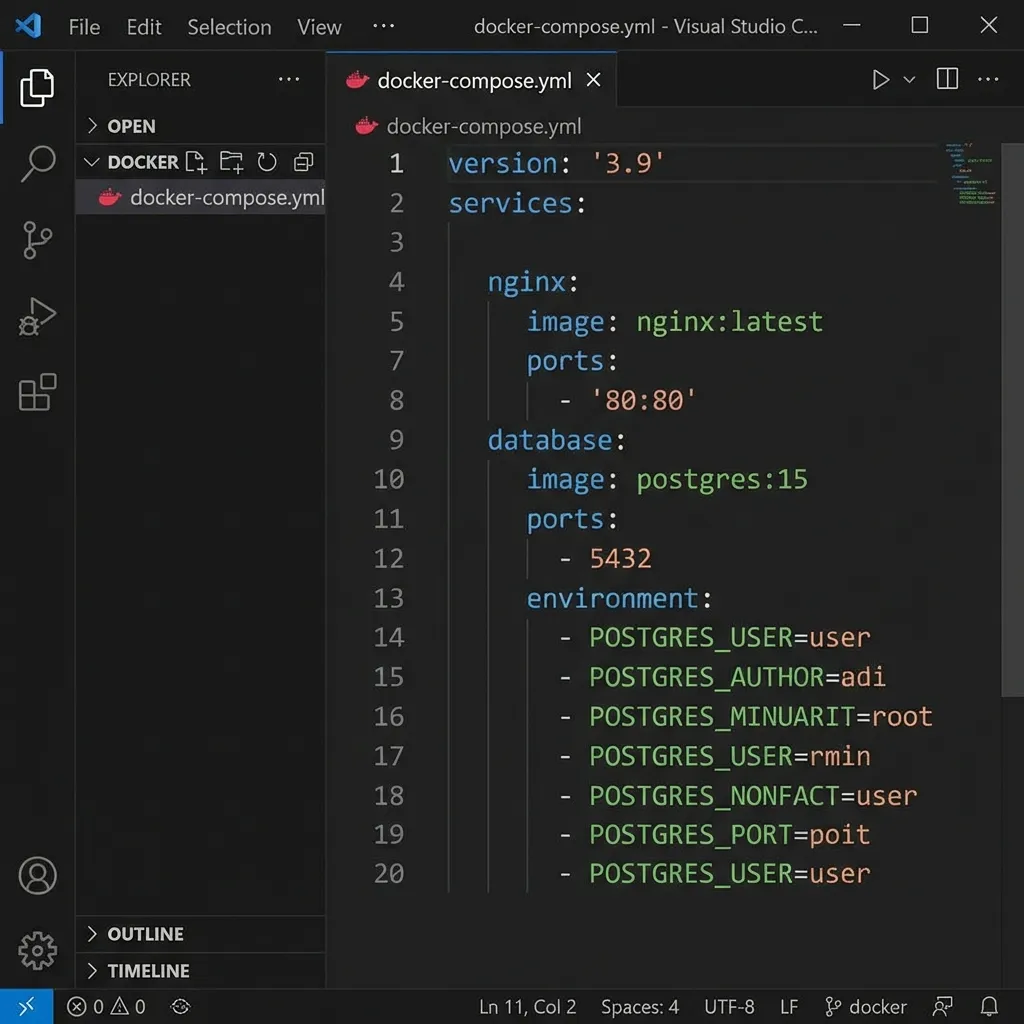
Running Kubernetes at home because you want to learn it is valid. Running it because you think you need it for twelve Docker containers is not. A single docker-compose.yml file handles the vast majority of homelab workloads with far less headache.
The Homelab Rabbit Hole
The scope creep is real. What starts as a single Pi blocking ads turns into network diagrams sketched on napkins and late nights comparing NVMe specifications. That's just the nature of the hobby — it expands to fill whatever space (physical and mental) you give it.
The communities around this are genuinely helpful. r/homelab, r/selfhosted, and a handful of Discord servers full of people who've made every mistake you're about to make. Lean on them. Nobody figures all of this out alone.
So — what's the one thing you'd want your homelab to do first? Not five things. One. Start there. The rest either follows naturally or it doesn't, and either way you'll learn something about what you actually care about versus what looked cool in someone else's rack photo. Your setup will look nothing like mine, and that's kind of the whole point.
💬 Comments