Docker installs in under 2 minutes on any major distro. The rest of this page is optional reading.
You can apt install docker.io and call it a day. But here's why you probably shouldn't:
- Distro packages lag behind - Ubuntu 22.04's docker.io package might be 6+ months older than Docker's current release
- Security patches - Docker pushes security fixes quickly. Distro maintainers take time to verify and repackage
- Features - Newer Docker versions have useful features you'll want
- Compose integration - Docker's official packages include Compose as a plugin, properly integrated
Setting up Docker's official repo takes 2 extra minutes. Worth it.
Installing Docker on Ubuntu/Debian (The Right Way)
docker ps, and get a permission denied error. Every single time. Because you forgot to add your user to the docker group, or you added yourself but didn't log out and back in. It's sudo usermod -aG docker $USER, then actually log out. Not just close the terminal — log out of your session. I still get bitten by this on fresh installs and it still annoys me.
Step 0: Get Rid of Any Conflicting Stuff
Old packages conflict with the official install. Remove them first:
sudo apt remove docker docker-engine docker.io containerd runc"Package not found" errors here are fine — means it wasn't installed.
Step 1: Update and Install Prerequisites
sudo apt update
sudo apt install ca-certificates curl gnupg
Needed for adding Docker's repo securely. Most of these are already on your system.
Step 2: Add Docker's GPG Key
GPG key so apt can verify the packages actually come from Docker:
sudo install -m 0755 -d /etc/apt/keyrings
curl -fsSL https://download.docker.com/linux/ubuntu/gpg | sudo gpg --dearmor -o /etc/apt/keyrings/docker.gpg
sudo chmod a+r /etc/apt/keyrings/docker.gpg
⚠️ If this fails: You're probably not running with sudo.
For Debian, replace "Ubuntu" with "Debian" in the URL above.
Step 3: Add the Docker Repository
echo \
 "deb [arch=$(dpkg --print-architecture) signed-by=/etc/apt/keyrings/docker.gpg] https://download.docker.com/linux/ubuntu \
 $(. /etc/os-release && echo "$VERSION_CODENAME") stable" | \
 sudo tee /etc/apt/sources.list.d/docker.list > /dev/null
Detects your architecture and Ubuntu version codename automatically. For Debian, swap "ubuntu" for "debian" in the URL.
Step 4: Install Docker
sudo apt update
sudo apt install docker-ce docker-ce-cli containerd.io docker-buildx-plugin docker-compose-plugin
What you're installing:
- docker-ce — the daemon that runs containers
- docker-ce-cli — the command-line interface
- containerd.io — low-level container runtime
- docker-buildx-plugin — multi-arch build support
- docker-compose-plugin — Compose as a built-in plugin
Step 5: Verify It Works
sudo docker run hello-worldIf you see the "Hello from Docker!" message, it works.
Running Docker Without Sudo (You'll Want This)
Typing sudo before every docker command gets old. Fix it:
# Create the docker group (might already exist)
sudo groupadd docker

# Add yourself to it
sudo usermod -aG docker $USER
Important: Log out and back in for this to take effect. Closing the terminal is not enough — full session logout, or just reboot.
After logging back in, test:
docker run hello-worldNo sudo. That's what you want.
A Note on Security
The docker group grants effective root access — anyone in it can mount the host filesystem and modify anything. Fine on your dev machine. On a shared server, be selective about who gets added.
Installing Docker on Fedora/RHEL/CentOS
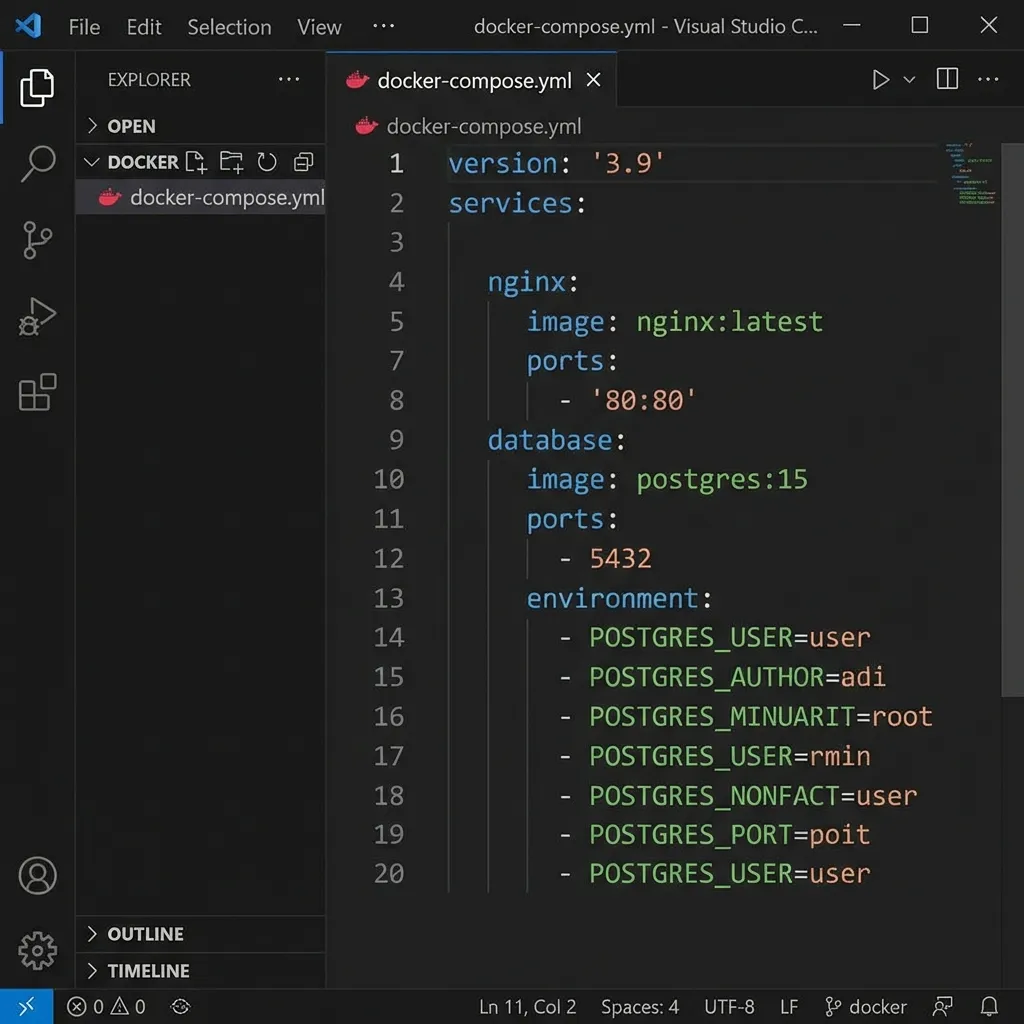
Same idea, DNF instead of apt:
# Remove old versions
sudo dnf remove docker docker-client docker-client-latest docker-common docker-latest docker-latest-logrotate docker-logrotate docker-engine

# Add Docker's repo
sudo dnf config-manager --add-repo https://download.docker.com/linux/fedora/docker-ce.repo

# Install
sudo dnf install docker-ce docker-ce-cli containerd.io docker-buildx-plugin docker-compose-plugin

# Start and enable Docker
sudo systemctl start docker
sudo systemctl enable docker

# Test
sudo docker run hello-world
For RHEL or CentOS, swap "fedora" for "rhel" or "centos" in the repo URL.
Docker Compose - It's Already Installed
Old tutorials say to download docker-compose as a standalone binary into /usr/local/bin. Don't. The install commands above already include docker-compose-plugin.
Only difference is how you call it:
# Old way (standalone binary)
docker-compose up -d

# New way (plugin)
docker compose up -d
No hyphen. docker compose (space, not dash). If that works, you're set.
# Check your Compose version
docker compose version
First Things to Do With Docker
Sanity check — make sure your install actually works:
Run a Container
# Run Ubuntu interactively
docker run -it ubuntu bash
You're inside an Ubuntu container now. exit to leave. Container stops when you do.
Run Something in the Background
# Run nginx web server
docker run -d -p 8080:80 nginx
Hit http://localhost:8080 in your browser. Nginx welcome page means it's working.
See What's Running
docker psStop It
docker stop [CONTAINER_ID]First 3-4 characters of the container ID are enough.
Common Issues and How to Fix Them
"permission denied while trying to connect to the Docker daemon socket"
You didn't add yourself to the docker group, or you added yourself but haven't logged out and back in yet.
"Can't connect to the Docker daemon. Is the Docker daemon running?"
sudo systemctl start dockerDocker's not running. Start it, and set it to auto-start on boot:
sudo systemctl enable dockerDNS Issues (Container Can't Reach Internet)
Happens on corporate networks mostly. If containers can't resolve hostnames, override Docker's DNS in /etc/docker/daemon.json:
{
 "dns": ["8.8.8.8", "8.8.4.4"]
}
Restart Docker after:
sudo systemctl restart dockerDisk Space Filling Up
Old images, stopped containers, and unused volumes pile up.
# See how much space Docker is using
docker system df

# Clean up everything unused
docker system prune -a
-a removes all unused images, not just dangling ones. Don't run this blindly in production.
Understanding What You Just Installed
The four things you need to know:
- Image — a read-only template. Think VM snapshot or class definition.
- Container — a running instance of an image. Many containers can share one image.
- Volume — persistent storage that survives container restarts and removal.
- Network — how containers communicate with each other and the host.
When you run docker run nginx, here's what happens:
- Looks for the Nginx image locally
- If not found, downloads it from Docker Hub
- Creates a container from that image
- Starts the container
Quick Troubleshooting
Three things that trip people up after install:
- Permission denied? →
sudo usermod -aG docker $USERthen log out and back in - Daemon not starting? →
sudo systemctl enable --now docker - Old version? →
docker --version, if below 24.x, uninstall and redo the install from the top
Quick Reference Commands
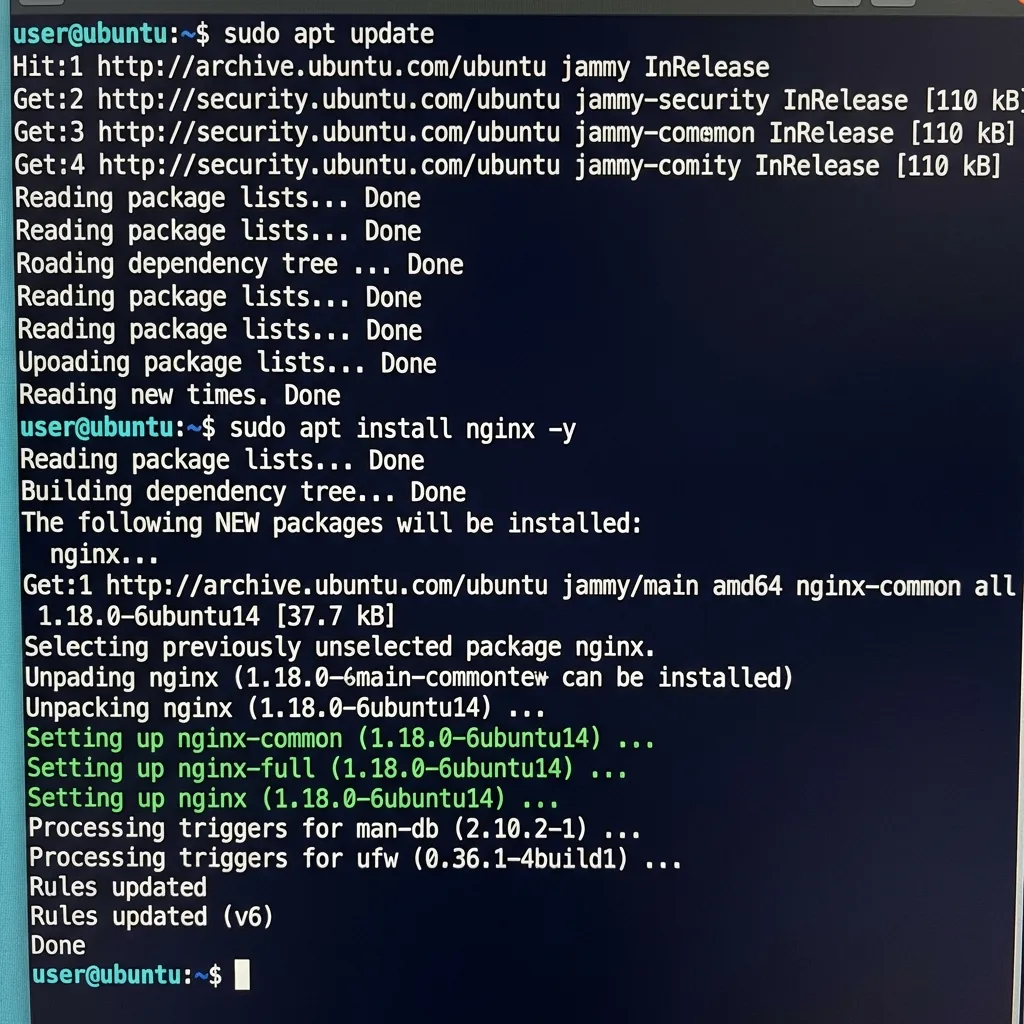
Daily-use commands for reference:
# Pull an image
docker pull postgres:15

# Run a container
docker run -d --name mycontainer -p 8080:80 nginx

# List running containers
docker ps

# List all containers (including stopped)
docker ps -a

# Stop a container
docker stop mycontainer

# Remove a container
docker rm mycontainer

# List images
docker images

# Remove an image
docker rmi nginx

# View container logs
docker logs mycontainer
docker logs -f mycontainer # Follow logs in real-time

# Execute command in running container
docker exec -it mycontainer bash

# Build image from Dockerfile
docker build -t myimage:v1 .

# Docker Compose: start services
docker compose up -d

# Docker Compose: stop services
docker compose down

# Docker Compose: view logs
docker compose logs -f
Bookmark this. You'll come back to it.
💬 Comments